Manage Stany admins
Give colleagues admin access to Stany, the async standup bot for Slack, so they can set up standups and see everyone's check-ins on the dashboard.
 SlackUpdated Oct 5, 20261 min read
Stany admins can create, edit, pause and remove standups, see and export everyone's check-ins, and add or remove other Stany admins. The person who installed Stany is its first admin, BuddiesHR workspace admins always have admin access, and any Stany admin can add more people from the web dashboard.
Step 1: Open Manage admins#
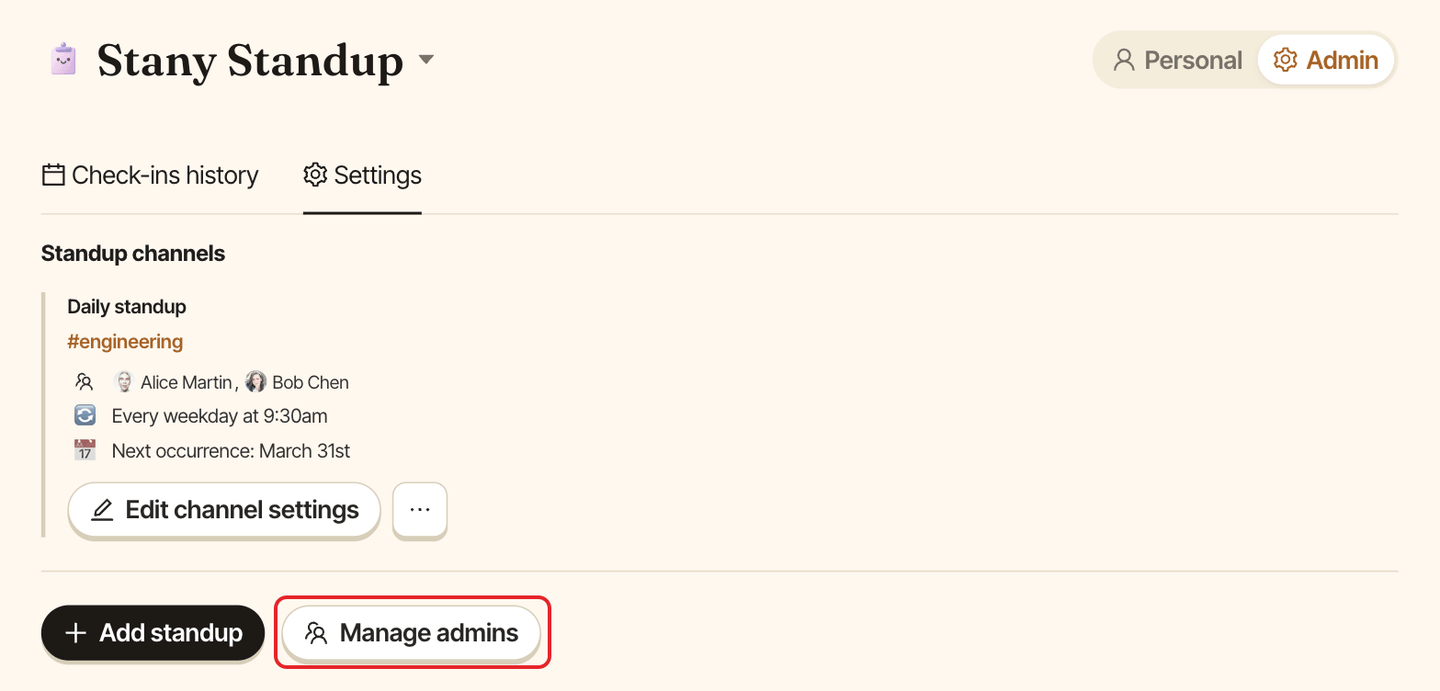
Go to dashboard.buddieshr.com, open Stany, switch to Admin and open the Settings tab. Click Manage admins.
Step 2: Add or remove admins#
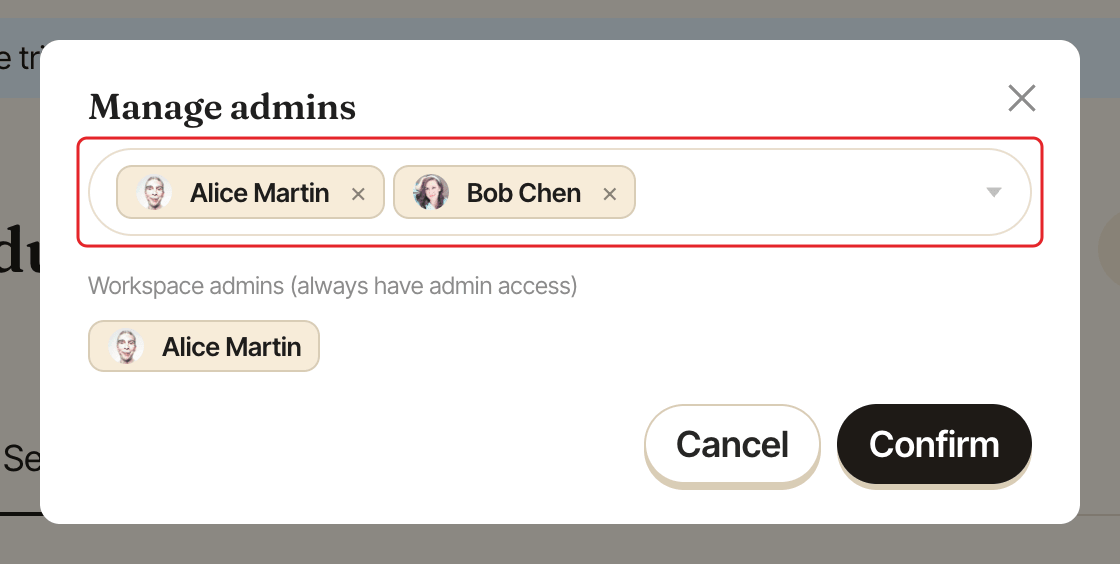
In the Manage admins window, search for colleagues in "Search for people to add as admin" and select them. To remove someone, click the × on their name.
Your BuddiesHR workspace admins are listed under "Workspace admins (always have admin access)". You can't remove them here.
Step 3: Confirm#
Click Confirm. A message says "Admins updated".
What admins and participants see#
| Admins | Participants | |
|---|---|---|
Personal view: My check-ins |
Yes | Yes |
Admin view: Check-ins history and Settings |
Yes | No |
⚙️ Admin Settings on Stany's Slack Home tab |
Yes | No |
| Free trial countdown and upgrade buttons | Yes | No |
Admins switch between the two views with the Personal / Admin switch at the top of the dashboard.